

ARC Raiders
-
ARC Raiders External
Undetected -
ARC Raiders Hydra
Undetected -
ARC Raiders Internal
In Development
Rust
-
Rust Delta
Undetected
Rainbow Six Siege
-
R6 External
Undetected -
R6 Inferno
Undetected
Valorant
-
Valorant Full
Undetected -
Valorant Internal
Undetected
Call of Duty
-
BO7 / Warzone External
Undetected
Apex Legends
-
Apex Full
Undetected
HWID Spoofer
-
Permanent Spoofer
Undetected -
Temporary Spoofer
Undetected
Utility Tools
-
AI Aimbot
Undetected
Arc Raiders - Guides
Getting Started
Disable Windows Defender
-
Disable Virus & threat protection settings
- Search "Virus & Threat Protection Setting" in your windows search bar
- Click "Manage Settings"
- Disable all settings here, including "Real-time protection"

-
Disable Memory Integrity
- Search "Core Isolation" in your windows search bar
- Disable "Memory integrity" if it is enabled and restart your device.

-
Download and Install DControl
- Download winrar (https://www.win-rar.com/postdownload.html) and install it. (This is needed to extract certain files)
- Download DControl (download link)
- Open it and select "Disable Windows Defender"

-
Remove Other Anti-Cheats
Uninstall the following if installed:
- FACEIT Anti-Cheat
- Vanguard (Valorant Anti-Cheat)
Overlay Setup
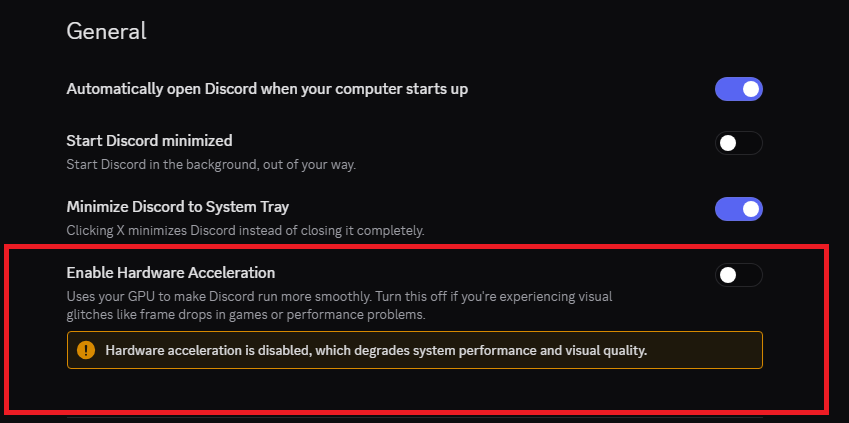
1. Disable Hardware Acceleration
- Open Discord → User Settings (gear icon)
- Go to Advanced → turn OFF Hardware Acceleration
- Restart Discord
2. Enable Discord Overlay
- Discord → User Settings → Game Overlay
- Turn ON Enable in-game overlay
- Make sure Legacy Overlay is OFF
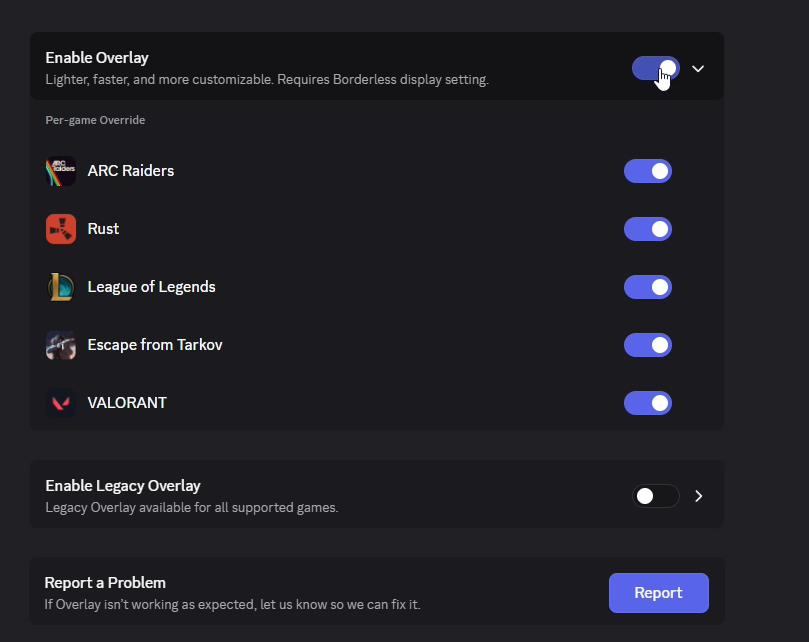
Keep Discord running while you play.
Injection Process
- Register an account at https://ez-val.com/
- Select Arc Raiders, click activate key and then download the loader
- Right-click the downloaded loader file and select 'Run as administrator'. This is required — it won't work without admin rights.
- A browser window will open automatically for authentication. Select your license key and wait for the loader to confirm.
- The loader will prepare everything in the background. Wait until it says 'ready' — this usually takes 10-30 seconds.
- Open the game through Steam. Wait until you're in the lobby.
ARC Raiders must be launched through Steam — not through a shortcut or direct executable. The loader hooks into the Steam launch process. - Press Load in the lobby. The software will initialize and you're good to go.
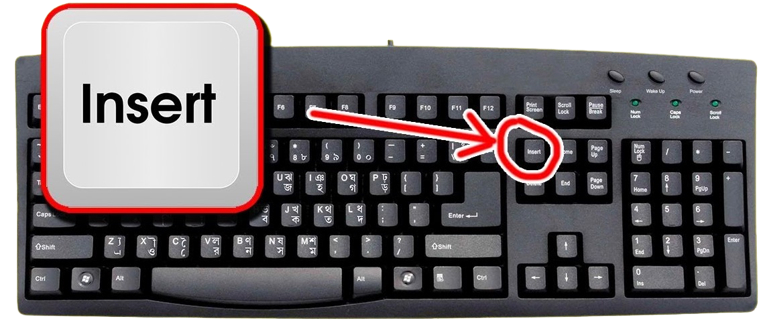
TIP: To open / close the menu press the insert key found here.
Troubleshooting
-
Failed to Connect
- Fix #1: If you're encountering this error, it's most likely related to not following the Disable Windows Defender steps above. Go back and double check these steps are complete.
- Fix #2: If you're still encountering this error, then it may be a connection issue with your internet. Install and enable a VPN such as WARP.
- Fix #3: If you are still encountering this error even after Fix #1 and Fix #2, then it may be related to your windows version. Press "Windows + R", type "Winver". If you see "25H2" you will need to downgrade. Use this video: https://www.youtube.com/watch?v=u2afU_wgox4
-
Not Seeing Menu After Injecting
- This problem is caused because your game is in full screen. Go to Settings → Graphics → Display. Change the screen mode to borderless/windowed fullscreen.
- If you still don't see your menu, close the game and restart the injection process now that your game is borderless/windowed.
-
Connection Failed
- Enable a VPN such as WARP. The VPN is only required during injection. Once you're ingame with the cheat loaded, you can disable the VPN.
-
Authentication Failed
Almost always a clock sync issue.
Fix:
- Open Settings → Time & Language → Date & Time
- Toggle "Set time automatically" OFF
- Wait 2–3 seconds, toggle it back ON
- Click "Sync now"
- Restart the loader
- If it persists, check your internet connection and try a different DNS (1.1.1.1 or 8.8.8.8).
-
ESP is very laggy ingame
To resolve this and achieve smooth ESP performance, reduce the demand the game places on your hardware:
- Cap the FPS on the cheat’s overlay: Inside the Frost menu, cap the FPS to around 50–80 FPS.
- Adjust In-Game Graphics Settings: Lower graphics-intensive settings, prioritizing Texture Quality/Resolution, Shadow Quality, Anti-Aliasing (AA), Field of View (FOV) (if extremely high), and Post-processing Effects.
- By implementing these adjustments, you will lower CPU/GPU utilization and allow the ESP overlay to render smoothly.
Rust Delta - Guides
Disabling Windows Defender
Disable Windows Defender with dControl
File: Defender Control.zip
- Download dControl from the link above.
- Unzip the downloaded files.
- Open dControl.exe.
- Turn Off Windows Defender.

Once Disabled it will be red, this step has been successfully completed
Download & Install Visual Runtimes
File: Visual-C-Runtimes-All-in-One-Feb-2024.zip
- Download the Visual C Runtimes Runtimes All in One Above
- Use an Extract tool such as Winrar or 7Zip to extract it to a folder

- Right click on it and press Extract to visual-c-runtimes all-in-one feb-2024
- Once Extracted open the yellow folder.
- Run install_all as administator then press yes to all the UAC pop ups it may take a few minutes depending on your internet speed to install each Visual Runtime.
Downloading DirectX
- Install the following program from gofile - https://gofile.io/d/cPOeD0
- Download dxwebsetup.exe from gofile
- Run dxwebsetup.exe
- Uncheck the "Install Bing Bar" Check box to ensure no errors occur.
- Once complete we can advance onto the next stage
Overlay Setup
- Download Overwolf (for AMD users) or NVIDIA App (for NVIDIA users) – required for the cheat.
- Make sure the overlay app (Overwolf/NVIDIA) is running in background before launching the cheat
How to inject the cheat into Rust
- Install the loader from the following link - https://loader.red/
- Enter your license key to download the loader
- Run the loader as Administrator.
- Click "Start" on the desired game
- Start the game (Should open automatically)
- Use insert on your keyboard to open and close the menu
IMPORTANT: The cheat will automatically launch your game — spoof before injecting if needed.
R6 External - Guides
Video Tutorial
Watch our step-by-step video guide for a complete walkthrough:
Disabling Windows Defender
Disable Windows Defender with dControl
File: Defender Control.zip
- Download dControl from the link above.
- Unzip the downloaded files.
- Open dControl.exe.
- Turn Off Windows Defender.
Once Disabled it will be red, this step has been successfully completed
Enable Discord Overlay
- Download discord app if you haven't: https://discord.com/download
- Create an account & head over to settings, then find "game overlay" section
- Disable Overlay but enable Legacy Overlay

Download & Install Visual Runtimes
File: Visual-C-Runtimes-All-in-One-Feb-2024.zip
- Download the Visual C Runtimes Runtimes All in One Above
- Use an Extract tool such as Winrar or 7Zip to extract it to a folder
- Right click on it and press Extract to visual-c-runtimes all-in-one feb-2024
- Once Extracted open the yellow folder.
- Run install_all as administator then press yes to all the UAC pop ups it may take a few minutes depending on your internet speed to install each Visual Runtime.
Downloading DirectX
- Install the following program from gofile - https://gofile.io/d/cPOeD0
- Download dxwebsetup.exe from gofile
- Run dxwebsetup.exe
- Uncheck the "Install Bing Bar" Check box to ensure no errors occur.
- Once complete we can advance onto the next stage
How to inject the cheat into R6
- authenticate your license at: https://registerpanel.com/
- Build & Download Client
- Open loader as admin, enter your license key (Starts with "R6-") and click login
- After logging in click load and wait until it has fully loaded
- After loading launch R6 and click Ok in lobby
- The injection can take up to a minute, after the Bat file closes the cheat should appear
TIP: To open / close the menu press the insert key found here.

Troubleshooting
- No overlay/menu: Make sure your game is set borderless & discord Legacy Overlay is enabled.
- Cheat Bugging (ESP lagging & menu doesn't appear): Restart your device after each injection to avoid any issues.
- Game crashing: Lock your game FPS.
R6 Inferno - Guides
Disabling Windows Defender
Disable Windows Defender with dControl
File: Defender Control.zip
- Download dControl from the link above.
- Unzip the downloaded files.
- Open dControl.exe.
- Turn Off Windows Defender.
Once Disabled it will be red, this step has been successfully completed
Download & Install Visual Runtimes
File: Visual-C-Runtimes-All-in-One-Feb-2024.zip
- Download the Visual C Runtimes Runtimes All in One Above
- Use an Extract tool such as Winrar or 7Zip to extract it to a folder
- Right click on it and press Extract to visual-c-runtimes all-in-one feb-2024
- Once Extracted open the yellow folder.
- Run install_all as administator then press yes to all the UAC pop ups it may take a few minutes depending on your internet speed to install each Visual Runtime.
Downloading DirectX
- Install the following program from gofile - https://gofile.io/d/cPOeD0
- Download dxwebsetup.exe from gofile
- Run dxwebsetup.exe
- Uncheck the "Install Bing Bar" Check box to ensure no errors occur.
- Once complete we can advance onto the next stage
How to inject the cheat into R6
- Download the loader from: https://uniqueloader.com/r6s/ and put it on your C:\ drive
- Unzip/Unpack the file (If it asks for a password put "123")
- Run the cheat loader as administrator
- Copy your purchased key and put it into the Serial Key field
- Press Sign In
- Press Start Injection Process (It can take a moment for this button to appear, let it load)
- Wait for the Please Open Rainbow Six Siege message
- Start Rainbow Six Siege
- Start the game in borderless mode (the injection will only work in this mode)
- Once you are in the main menu (lobby) press Insert to inject
- The menu will show up on your top left screen then
Have fun!
TIP: To open / close the menu press the insert key found here.
Troubleshooting
Driver Error 1
If you encounter Driver Error 1, it is likely related to your antivirus. Ensure the preparation was completed correctly and that your antivirus is fully disabled.
Driver Initialization Error 1
Open the Windows Security app, navigate to the Device Security panel, and access the Core Isolation page. Disable the Microsoft Vulnerable Driver Blocklist, then restart your device. If this does not work, create a new folder on your C:\ drive and place the .exe and .dll file inside it. Then, run the loader from this folder.
Injection Error 1
To resolve this error, ensure the preparation steps were completed 100% correctly. This issue is often caused by antivirus interference. Disable Core Isolation and Real-Time Protection, and fully uninstall any third-party antivirus software, as well as Riot Vanguard and FaceIT.
Game Is crashing
To fix this issue, ensure the game is set to borderless mode before injecting. If the issue still persists, verify your game files and try again.
ERR_SSL_PROTOCOL_ERROR
To resolve this issue, download a VPN and enable it. The VPN we recommend is https://1.1.1.1 as it is free & has no ads at all. If you currently already use a VPN, disable it & try again.
Valorant - Guides
Disabling Windows Defender
Disable Windows Defender with dControl
File: Defender Control.zip
- Download dControl from the link above.
- Unzip the downloaded files.
- Open dControl.exe.
- Turn Off Windows Defender.
Download & Install Visual Runtimes
File: Visual-C-Runtimes-All-in-One-Feb-2024.zip
- Download the Visual C Runtimes Runtimes All in One Above
- Extract with Winrar / 7Zip
- Run install_all as administrator
Downloading DirectX
- Install the following program from gofile - https://gofile.io/d/cPOeD0
- Download dxwebsetup.exe from gofile
- Run dxwebsetup.exe
- Uncheck the "Install Bing Bar" Check box
Enable Memory Integrity (Required)
Memory Integrity (HVCI) must be turned ON for this product to work.
- Press Win + I to open Settings
- Go to Privacy & Security → Windows Security
- Click Device Security → Core isolation details
- Turn ON Memory integrity
- Restart your PC
Overlay Setup
Install Discord: https://discord.com/download
Enable Hardware Acceleration
- Open Discord → User Settings (gear)
- Advanced → turn ON Hardware Acceleration
- Restart Discord
Enable Discord Overlay (Required)
- Discord → User Settings → Game Overlay
- Turn ON Enable in-game overlay
- Make sure Legacy Overlay is OFF
- Keep Discord running while you play
If overlay doesn't appear: join any voice channel, check Registered Games, restart Discord and relaunch the game.
How to inject the cheat into Valorant
- Go to https://ez-val.com/ and create an account
- Activate your license and download the loader
- Run the loader as administrator
- Authenticate in the browser window
- Open Valorant through the Riot Client
- Press INSERT to toggle the menu
How to open and close the menu
To open / close the menu press the insert key found here

On laptops you may need Fn + INSERT. 60% keyboards: use your model’s INSERT combo.
Troubleshooting
ESP not showing any players
- Wait until you're past agent select and inside a round
- Check Visuals tab and enable ESP
- Verify max distance is not too low
Connection failed
- Disable VPN/proxy
- Allow loader through firewall
Overlay Not Found
- Run Discord as administrator
- Disable Legacy Overlay
- Enable in-game overlay and verify Registered Games
Initialization error
- Settings → Time & Language → Date & Time
- Toggle Set time automatically OFF then ON
- Click Sync now and restart loader
Uninstall FACEIT (if installed)
FACEIT Anti-Cheat blocks the loader. Uninstall completely and restart.
HWID Spoofer - Guides
Windows Reinstall
We usually recommend using Windows 10, but if you prefer installing Windows 11 our spoofer also supports that.
How to reinstall windows: https://youtu.be/ysHsfT7vJcg
Install Windows 10 ISO File: https://www.microsoft.com/en-us/software-download/windows10
- Download Media Creation Tool above, click Download Now
- Open Media Creation Tool
- Select Create installation media (USB flash drive, DVD or ISO file) for another PC
- Use the recommended options
- Select ISO file
- Select the directory
- After the Windows ISO finishes, download Rufus
Download Rufus: rufus-4.5.exe
- Open Rufus and select these options
- Press Select and go to the directory where you downloaded the ISO
- Select your USB (8gb+)

- Select the last two options

- Press OK and wait for Rufus to complete the USB format
- After completed drag this MEGA folder inside of the USB
Your USB stick should look like this:

Before continuing, if you are on WiFi make sure to download your WiFi drivers onto the USB. You can download the drivers from your motherboard website.
To find your motherboard press Windows + R, type msinfo32. You should be able to find it here.

- Hold SHIFT and click Restart

- Select Use a device and select your flash drive

- Select Windows 10 Pro

- Select I don't have a product key (if it doesn't show this don't worry)

- Select Custom: Install Windows only (advanced)

- Press SHIFT + F10
- Type diskpart into the CMD
- Type select disk # (# = for every disk number) and clean for every disk you have except your flash drive
Your flash drive is likely the last drive listed (do not delete it).

- Close the CMD and click Refresh

- Select your main drive and click Next
- The installation process should start
Windows Setup
Do these exact steps (don't connect to internet until you've finished the setup).
WARNING VIDEO: https://streamable.com/8w2pxa
Do NOT login to Microsoft (Example)

Disable Windows Defender
Disable Windows Defender Manually
- Select Start and type "Windows Security"
- Select the Windows Security app, go to Virus & threat protection → Manage settings
- Switch Real-time protection to Off
Disable Windows Defender with dControl
- Download dControl: dControl.zip
- Unzip the files
- Run dControl.exe
- Disable Windows Defender

Disable Windows Updates
- Download Windows Update Blocker: Update Blocker.zip
- Unzip the files
- Run Wub_x64.exe
- Disable Windows Updates and Apply Now

Bios Setup
Apply these settings 1:1. Do not miss a step.
Flash Bios (ONLY REQUIRED FOR VALORANT): https://youtu.be/sKMub20CUNI
Enabling TPM & Secure boot is only needed if you want to play Fortnite tournaments. If you do not have a specific reason to keep them enabled please disable them.
INTEL CPU'S Do not skip
- Virtualization: Advanced → CPU Configuration → Intel (VMX) Virtualization Technology set to Disabled.
- VT-d: Advanced → System Agent (SA) Configuration → VT-d set to Disabled.
- TPM: Advanced → PCH-FW → TPM Device Solution set to Enable Discrete Firmware/TPM. Advanced → Trusted Computing → Security Device Support set to Enable.
- Armoury Crate: Tool → ASUS Armoury Crate → Download & Install ARMOURY CRATE app set to Disabled.
- Fast Boot: Boot → Boot Configuration → Fast Boot set to Disabled.
- Secure Boot: Boot → Secure Boot → OS Type set to Other OS.
- Virtualization: OC → CPU Features → Intel Virtualization Tech set to Disabled.
- VT-d: OC → CPU Features → Intel VT-D Tech set to Disabled.
- TPM: Settings → Security → Trusted Computing → TPM Device Selection set to dTPM. Settings → Security → Trusted Computing → Security Device Support set to Enabled.
- MSI Driver Utility Installer: Settings Advanced → MSI Driver Utility Installer set to Disabled.
- Fast Boot: Settings → Boot → Fast Boot set to Disabled.
- Secure Boot: Settings → Security → Secure Boot → Secure Boot set to Enabled.
- Virtualization: OC → CPU Features → Intel Virtualization Tech set to Disabled.
- VT-d: OC → CPU Features → Intel VT-D Tech set to Disabled.
- TPM: Settings → Security → Trusted Computing → TPM Device Selection set to dTPM. Settings → Security → Trusted Computing → Security Device Support set to Enabled.
- Utility Installer: Settings → Advanced → Gigabyte Utilities Downloader set to Disabled.
- Fast Boot: Settings → Boot → Fast Boot set to Disabled.
- Secure Boot: Settings → Security → Secure Boot → Secure Boot set to Enabled.
UEFI/BIOS settings that need to be disabled:
- Virtualization
- VT-D
- Utility Installer
- Fast Boot
- Secure Boot
AMD CPU'S
- Virtualization: Advanced → CPU Configuration → SVM Mode set to Disabled.
- AMD NX Mode: Advanced → CPU Configuration → NX Mode set to Disabled.
- AMD IOMMU: Advanced → AMD CBS → IOMMU set to Disabled.
- TPM: Advanced ��� AMD fTPM → TPM Device Solution set to disable Discrete Firmware/TPM. Advanced → Trusted Computing → Security Device Support set to Enabled.
- Armoury Crate: Tool → ASUS Armoury Crate → Download & Install ARMOURY CRATE app set to Disabled.
- Fast Boot: Boot → Boot Configuration → Fast Boot set to Disabled.
- Secure Boot: Boot → Secure Boot → OS Type set to Other OS.
- Virtualization: OC → Advanced CPU Configuration → SVM Mode set to Disabled.
- NX Mode: OC → Advanced CPU Configuration → NX Mode set to Disabled.
- IOMMU: OC → Advanced CPU Configuration → AMD CBS → IOMMU set to Disabled.
- TPM: Settings → Security → Trusted Computing → AMD fTPM Switch set to AMD CPU fTPM Disabled. Settings → Security → Trusted Computing → Security Device Support set to Enabled.
- MSI Driver Utility Installer: Settings → Advanced → MSI Driver Utility Installer set to Disabled.
- Fast Boot: Settings → Boot → Fast Boot set to Disabled.
- Secure Boot: Settings → Security → Secure Boot → Secure Boot set to Enabled.
- Virtualization: Tweaker → Advanced CPU Configuration → SVM Mode set to Disabled.
- AMD NX Mode: Tweaker → CPU Configuration → NX Mode set to Disabled.
- AMD IOMMU: Settings → Miscellaneous → IOMMU set to Disabled.
- TPM: Settings → Miscellaneous → Trusted Platform Module set to Enabled. Settings → Miscellaneous → Trusted Computing → Security Device Support set to Enabled.
- Utilities Downloader: Settings → IO Ports → Gigabyte Utilities Downloader Configuration → Gigabyte Utilities Downloader set to Disabled.
- Fast Boot: Boot → Fast Boot set to Disabled.
- Secure Boot: Boot → Secure Boot → Secure Boot Enable set to Enabled.
UEFI/BIOS settings that need to be disabled:
- SVM Mode
- IOMMU
- TPM
- Utility Installer
- Fast Boot
- Secure Boot
TURN OFF WIFI & BLUETOOTH [REQUIRED]
- ASUS: ADVANCED → ONBOARD DEVICES CONFIGS → WIFI (WLAN) & BLUETOOTH DISABLED
- MSI: ADVANCED → INTEGRATED PERIPHERALS → WIFI (WLAN) & BLUETOOTH DISABLED
- GIGABYTE: ADVANCED/PERIPHERALS → WIFI (WLAN) & BLUETOOTH DISABLED
- ASROCK: ADVANCED → CHIPSET CONFIGURATION → WIFI (WLAN) & BLUETOOTH DISABLED
Disable CSM in your BIOS Boot tab (failure to do so will cause serials to revert).
Download Loader
Download Visual C++ Redistributable Runtimes All-In-One: techpowerup.com
- Download Visual C++ runtimes above
- Unzip the file
- Run install_all.bat as administrator
- Restart PC
Download DirectX Runtimes: microsoft.com
- Download DirectX above
- Uncheck Install the Bing Bar
- Click Next until finished

Download Loader: https://gofile.io/d/KjUu1b
For the spoofer to run correctly, confirm the BIOS settings are correct to avoid issues.
Spoof HWID
- Run loader
- Enter key (check Remember me)
- Login
SPOOF HWID (Enable GPU spoofing for FiveM only; not recommended for other games)
- Press UEFI Spoof


- Choose your motherboard and click Spoof (if you have a different motherboard press Other)
- Restart your PC
- Run loader & login
- Click Serial Checker to compare your serials
- Now do the Device Setup
This is how it should look like if you used UEFI spoof (and had GPU spoofing enabled)

This is how it should look if you don't load with a driver (regular spoof)

Device Setup (Required)
Disable Hidden Devices

Now, delete every single thing that is grey (not only disks, everything).


Network Setup video: https://streamable.com/k3mll0

Now you should only have one device being your network.

Change Monitor Serials
- Download CRU above
- Disable G-SYNC if your monitor supports it (important or you will black screen)
- Follow the video to change serials for all your monitors: https://streamable.com/6ibjqa

After Spoofing
- After you have spoofed and checked your serials have changed run this.

- Choose option '1' (this will delete the loader and spoofing cache)

- Once done delete CleanSpooferTraces.exe
- Do not log into any 3rd party software that requires login (Logitech G HUB, GeForce Experience, Razor, Medal, Microsoft, OneDrive, Steel Series)
- Use VPN for 10-14 days after spoofing (Windscribe WireGuard or IP Vanish)
- Do not log into the account that got a 24-hour ban before/VPN kick; always a new one (Fortnite)
- When you see pop ups for spoofed games press cancel / X on the top right

Categories
-
Why Choose Kylo?
-
24/7 - 365 Support
Our support team is available around the clock, every day of the year, to assist you.
-
Safety & Quality
We uphold the highest security standards to ensure a safe and reliable experience.
-
Instant Delivery
Get immediate access to your purchase right after transaction completion.
-